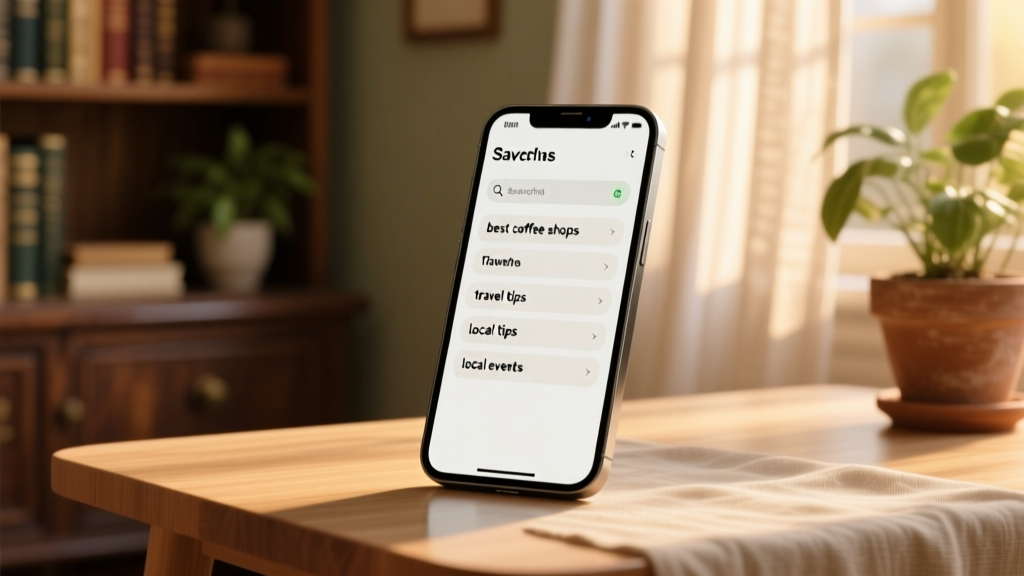
Discover Saved Searches
Creating a saved search is a great way to receive the latest house sits—completely tailored to your preferences. Designed with direct input from FurPetVo members, this feature helps you stay ahead in your journey as a trusted pet sitter.

What Are Saved Searches?
The saved search feature allows FurPetVo sitter members to save their search criteria and receive personalized alerts for upcoming house sits that match their plans. Both Standard and Premium members enjoy instant mobile notifications and unlimited saved searches.
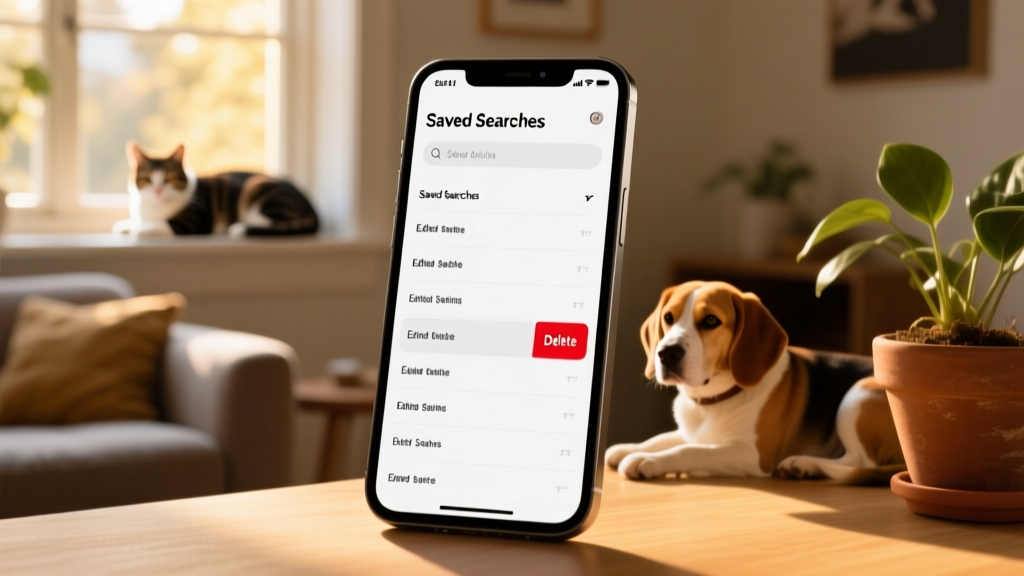
Your saved searches appear directly on the Find a Sit page—where you can easily add, rename, or delete them. Each day, you’ll receive an email alert highlighting up to 28 new matching opportunities across your 10 most recent saved searches. These alerts show key details at a glance: location, pet types, and available dates—with a direct link to view all newly listed sits on furpetvo.com.
Standard and Premium members also get real-time push notifications through the FurPetVo app whenever a new sit matches their saved criteria.
Why Did We Add This Feature?
This feature was inspired by consistent feedback from our community—many sitters told us they wanted a simpler, more reliable way to find sits in their preferred locations, with the pets they love, during the times they’re available.
We also recognized that similar functionality had become standard across leading pet care platforms—and our members expected it from FurPetVo too. With saved searches, we’ve made it faster and easier than ever to discover meaningful, well-matched opportunities.
How Do I Set Up a Saved Search?
On the website:
Go to the Find a Sit page and enter your desired location, dates, and pet preferences—just like you normally would. In the top-right corner of the results page, click Save this search. Give it a clear, memorable name (e.g., “Summer in Portland” or “Cats Only – June 2025”), then confirm.
On the app:
Tap Search in the bottom toolbar, then select your filters—location, duration, pet type, and more. Once your criteria are set, tap Save in the top-right corner, name your search, and confirm.
How Do I Delete a Saved Search?
On the website:
Log in and navigate to the Find a Sit page. Click View all to expand your list of saved searches. Next to any search, click the Delete option. Confirm by selecting Yes, delete.
To create a new saved search, simply adjust your criteria on the Find a Sit page and click Save this search.
On the app:
- Tap Search in the bottom toolbar, then select the Saved tab.
- Tap Edit in the top-right corner, select the searches you’d like to remove, then tap Delete in the bottom-left corner.
- Alternatively, press and hold on any saved search—then confirm deletion when prompted.
We hope you enjoy using FurPetVo’s saved search feature! Your feedback helps shape what comes next—so if you have suggestions or ideas, please share them with us via the Community Forum or the feedback button in your account.